Free tools
Colour Contrast checker
The Colour Contrast Checker helps to evaluate the contrast ratio between two colours to ensure readability and compliance with accessibility standards like WCAG.
Results
AA
AAA
Aa
Normal Text
Aa
Large Text
Design Elements
Your Colours
Find nearest:
Reverse
Current Contrast Ratio
0.00
How to use the Colour Contrast Checker?
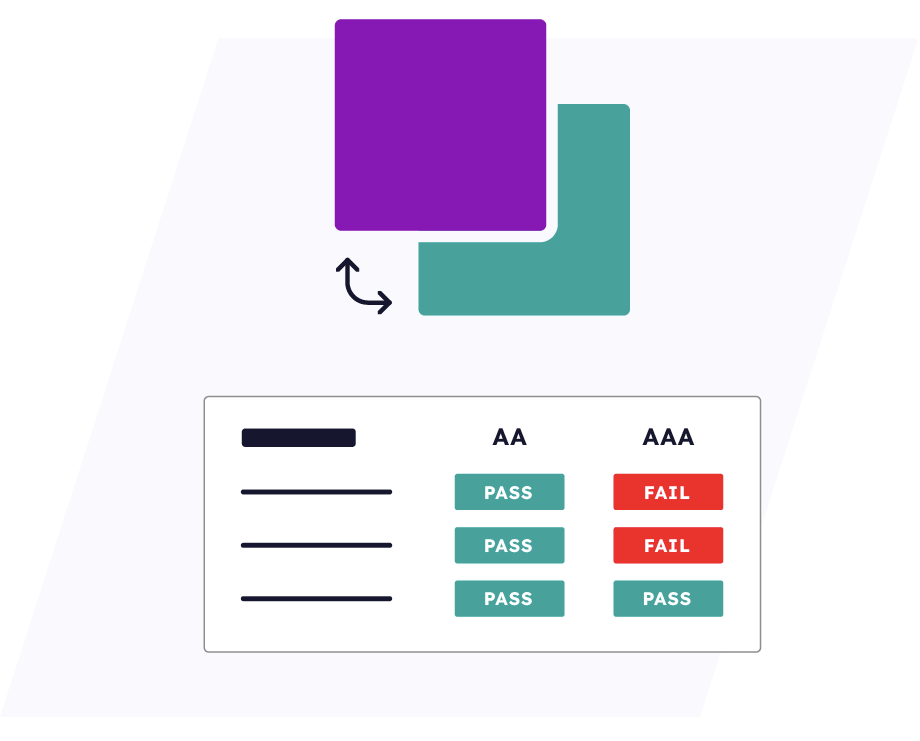
To check colour contrasts simply enter the hex codes or use the colour selector to choose your two desired colours. The checker instantly displays the results, showing whether the contrast meets WCAG compliance standards. These results are highlighted for small text, large text, and design elements.
If your chosen colours don’t meet the required standards, the tool suggests the closest compliant colour that meets AA or AAA guidelines. You can also use the ‘reverse’ button to swap the foreground and background colours.
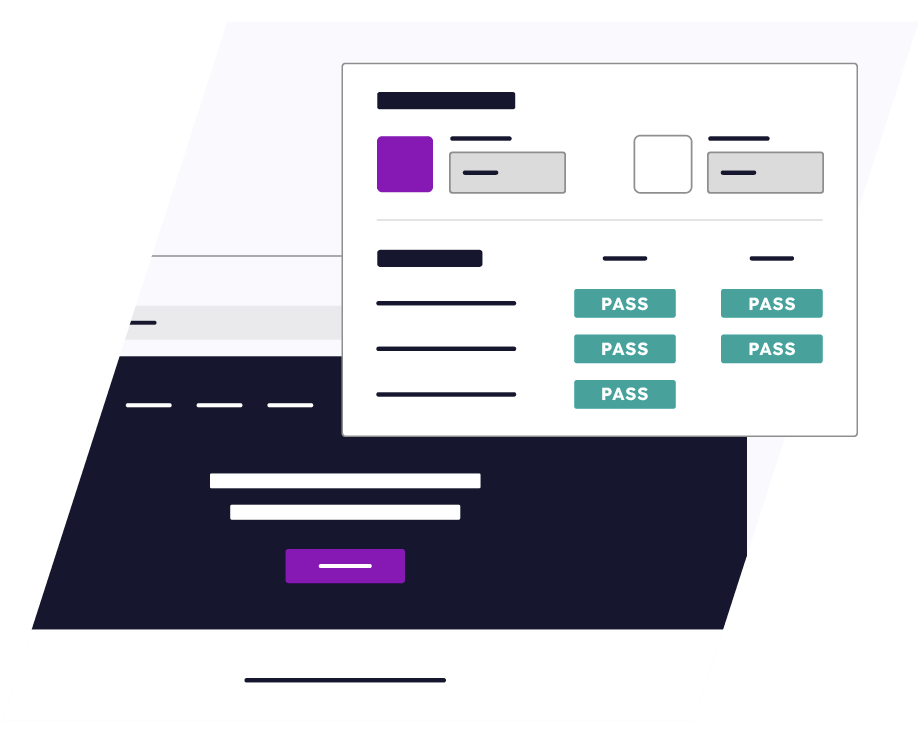
Finally, the tool provides a preview section where you can see how your selected colours appear in titles, paragraphs, form fields, and buttons.
Why is WCAG compliance colour contrast important?
Ensuring WCAG-compliant colour contrast isn’t just about aesthetics – it’s about accessibility. For users with visual impairments, including colour blindness and low vision, contrast can be the difference between clear readability and complete inaccessibility.
By adhering to WCAG guidelines, websites not only enhance inclusivity but also improve user experience and comply with legal accessibility standards. However, compliance exists on different levels, each with its own success criteria:
- WCAG Level AA: Requires a contrast ratio of at least 4.5:1 for normal text and 3:1 for large text and design elements.
- WCAG Level AAA: A more rigorous standard, demanding a contrast ratio of 7:1 for normal text and 4.5:1 for large text.
Prioritizing colour contrast isn’t just a best practice, it’s a commitment to inclusivity.
Accessibility Resources
Learn More About Digital Accessibility and Online Inclusion
Need help making your website accessible?
Discover a wealth of online accessibility resources to help you create inclusive digital experiences for all users.

-
WCAG Fix It: 2.4.2 Page Titles
Read more: WCAG Fix It: 2.4.2 Page TitlesIn this WCAG Fix It guide, we’re breaking down one of the simplest but most important accessibility requirements: making sure every page has a descriptive title. It’s one short line in your code but without it, users can quickly become lost, especially when navigating with assistive technology, and fixing it is one of the fastest
-
WCAG Fix It: 1.3.1 Info and Relationships
Read more: WCAG Fix It: 1.3.1 Info and RelationshipsIf your website uses headings, lists, tables, or forms, WCAG 1.3.1 applies to you. In this WCAG Fix It guide, we’re breaking down one of the most important structural accessibility requirements: ensuring that information, structure, and relationships are programmatically defined. It sounds technical but it’s really about, If something looks structured visually, it must also
-
WCAG Fix It: 2.1.1 Keyboard
Read more: WCAG Fix It: 2.1.1 KeyboardIf your website requires a mouse to function properly, WCAG 2.1.1 applies to you. IIn this WCAG Fix It guide, we’re breaking down one of the most fundamental accessibility requirements: ensuring all functionality is available using only a keyboard. No mouse.No touchscreen.Just the keyboard. If a user cannot navigate your website without a mouse, your
Scan, Detect, and Fix Accessibility
Issues Powered with Ai
Get a free AI-powered accessibility audit and uncover hidden barriers
that may exclude users with disabilities. Click the link below to scan now.