Website accessibility plugins let visitors customize how they experience your site. Think larger text, higher contrast, screen reading, and more. These tools do not replace a full accessibility audit or guarantee legal compliance. But they do make a real difference for the people using your site day to day.
This guide compares the ten most popular accessibility plugins. We look at what each one offers, who it suits, and where it falls short. Whether you run a small site or manage a large enterprise, you will find a clear breakdown here.
A quick glance at the top accessibility plugins for websites
We’ve prepared a list of our top 10 website accessibility plugins. But before we get into the details of each, let’s look at a quick comparison. The table below shows each plugin ranked from best to worst. You’ll also find their features and best use cases:
| Plugin | Features | Best for |
|---|---|---|
| Recite Me | 40+ | Enterprises needing full customization coverage |
| Equally.AI | 22+ | Mid-sized sites wanting AI-driven fixes |
| TabNav | 20+ | Keyboard navigation improvements |
| AccessiBe | 35+ | Automated overlay-based fixes |
| WideAccess | 23+ | Budget-conscious small businesses |
| WP Accessibility | 25+ | WordPress sites needing basic fixes |
| Userway | 35+ | Quick-install visual adjustments |
| All in One Accessibility | 23+ | Multilingual accessibility support |
| Eye-Able Assist | 25+ | Personalised reading assistance |
| AccessiYes | 21+ | Free, no-cost WordPress accessibility widget |
Ranking the best website accessibility plugins
We ranked each tool on feature depth, ease of use, and how well it helps real users customize their browsing experience. We looked at the range of adjustments on offer, from visual changes to reading and language support.
#1 – Recite Me
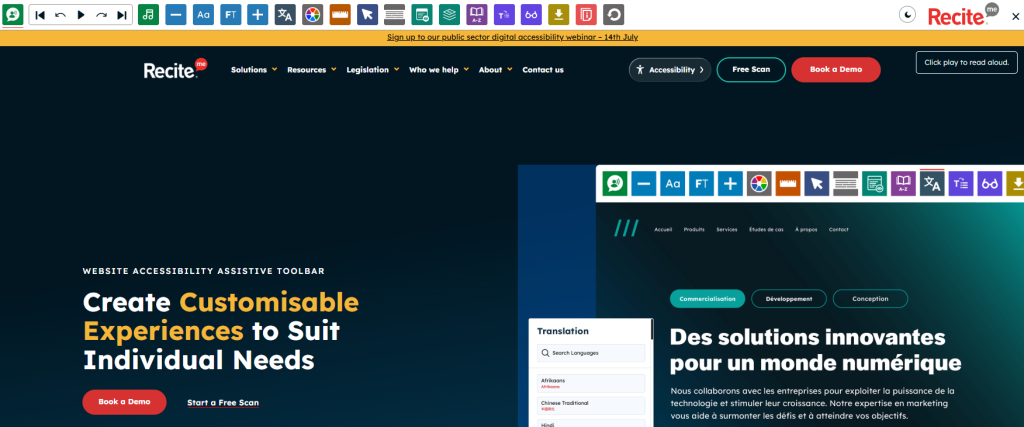
Recite Me pairs a wide set of customization tools with real usability gains, not just surface-level tweaks. It covers standard options like contrast and font size. But it also adds text-to-speech, translation into over 100 languages, a screen mask, and a dictionary.
This broader toolkit lets visitors adjust the site to suit visual, cognitive, and language needs, rather than just one group. Enterprise and public sector teams often use it, since they serve large, varied audiences and want more depth than a basic widget offers. The toolbar also gets updated often, adding new customization options over time.
Pros
- Wide range of tools
- Real usability, not overlays
- Suits large, varied audiences
- Regularly updated
Cons
- Priced for larger firms
- More than small sites need
#2 – Equally.AI
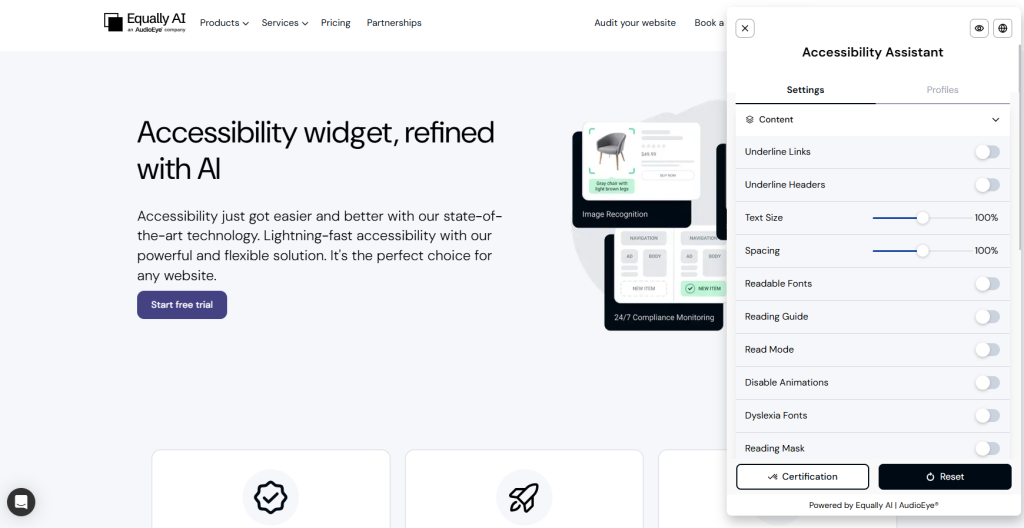
Equally.AI’s widget installs with a single line of code and gives visitors accessibility profiles they can switch between, including options for vision, cognitive, seizure-safe, ADHD, and dyslexia needs. The widget itself can also be customized to match your brand, with adjustable colours, icons, and positioning, so it feels like part of the site rather than a bolted-on extra.
Additionally, the widget refreshes its checks every day, which helps it keep working smoothly as pages and content change. For businesses wanting a widget that visitors can quickly personalise, this covers most of the common bases without much setup effort.
Pros
- Easy one-line install
- Multiple accessibility profiles
- Customisable to match branding
Cons
- Profile-based, less granular
- Daily refresh may lag
#3 – TabNav
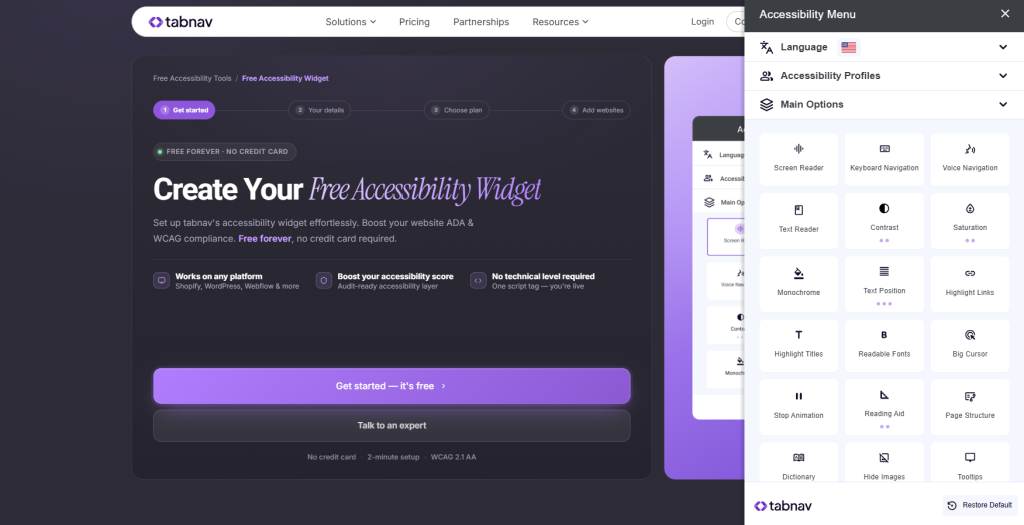
TabNav takes a narrower approach than most tools here. It focuses on keyboard navigation, helping visitors who cannot use a mouse move through a site with ease. It uses visible focus indicators and skip links to guide users.
This makes it a solid add-on for sites that already offer visual customization but lack strong keyboard support. It installs light and does not disrupt existing design. That said, TabNav is not a full toolkit on its own. It works best paired with a broader tool that covers visual and reading needs too.
Pros
- Strong keyboard support
- Light, easy install
- Pairs well with other tools
Cons
- Narrow scope
- No visual or reading tools
#4 – AccessiBe
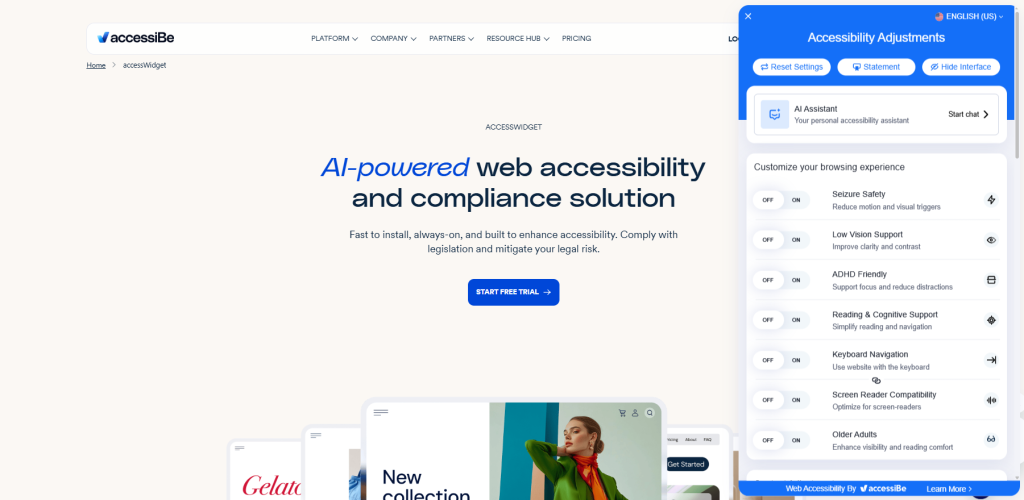
AccessiBe is a well-known name in the overlay space. It uses AI to apply visual and structural adjustments across a site almost right after install. It covers a wide range, from contrast changes to screen reader support, and updates often.
However, its overlay approach has drawn criticism from accessibility advocates. Many argue automated layers cannot fully replace changes made at the code level. Businesses should weigh this convenience against the ongoing debate, especially as scrutiny of overlay tools has grown in recent years.
Pros
- Fast, low-effort install
- Wide feature set
- Frequent updates
Cons
- Overlay approach criticised
- Doesn’t fix underlying code
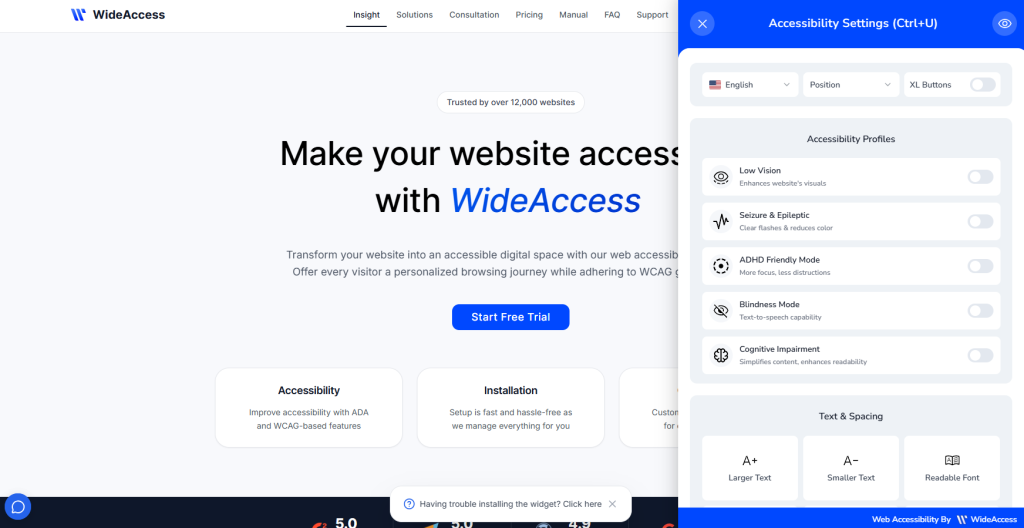
#5 – WideAccess
WideAccess offers a simple, low-cost toolbar built for small businesses that want basic customization options without a big spend. It covers core features like contrast, font size, and spacing, giving smaller sites a fair starting point.
Setup is quick, and most users get it running without help. That said, its feature set is much lighter than enterprise tools. It suits sites with simpler needs rather than those serving a large, varied audience. Firms that grow will likely want more depth than WideAccess offers.
Pros
- Affordable for small sites
- Covers core needs
- Quick setup
Cons
- Limited depth
- Light for larger sites
#6 – WP Accessibility
Built just for WordPress, this plugin targets common theme-level issues rather than offering a full toolbar. It adds fixes like missing alt text prompts, skip links, and language tags, which many WordPress themes miss by default. It is free, which makes it an easy entry point for small sites on tight budgets.
However, its focus is narrow, and it needs more manual setup than plug-and-play tools. Site owners will likely need to pair it with other tools to offer wider customization options.
Pros
- Built for WordPress
- Free to use
- Fixes common theme gaps
Cons
- Narrow focus
- Needs manual setup
#7 – Userway
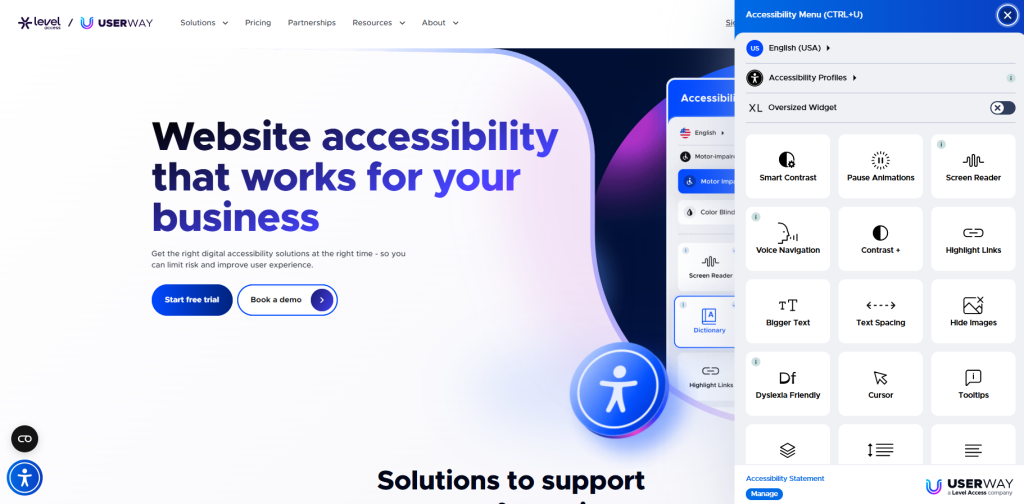
Userway is a popular widget known for fast setup and wide platform support. It offers visual customization options plus some AI-assisted fixes, mixing manual and automated tools. The free tier makes it easy for small sites to try, while paid tiers unlock more options.
Install takes just minutes on most platforms. That said, some users report mixed results from the automated features, especially on complex or custom-built sites. Manual testing alongside the widget is still a smart move.
Pros
- Fast, simple install
- Solid free tier
- Wide platform support
Cons
- Mixed automated results
- Key tools cost extra
#8 – All in One Accessibility
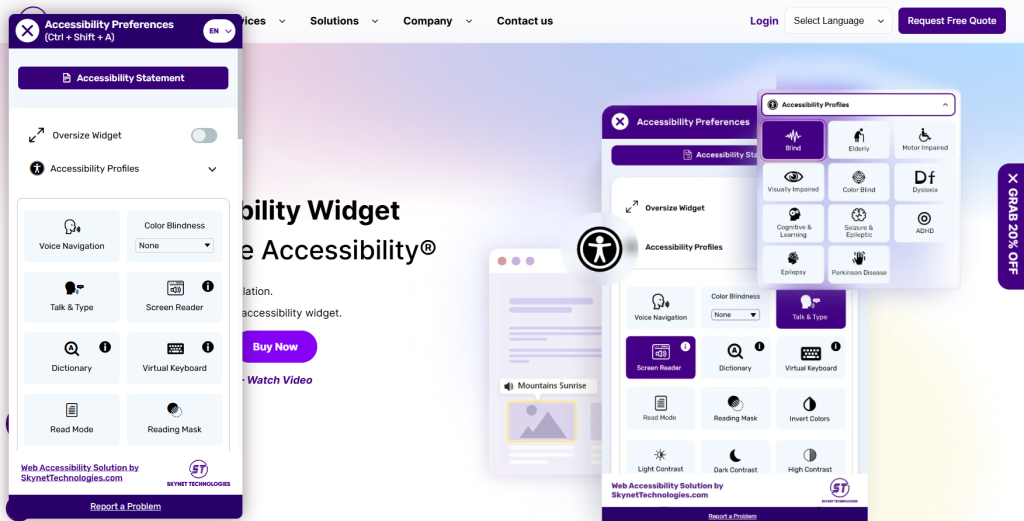
All in One Accessibility combines a wide feature set with strong multilingual support, making it a fair pick for sites with global visitors. It includes visual customization, screen reader support, and language switching in one widget.
This suits firms working across regions or serving non-English speakers. It integrates easily on most platforms, and most settings need no developer help. However, the interface can feel busy on smaller sites, and some features overlap without adding much value. This can make it feel heavier than needed for simple sites.
Pros
- Strong multilingual support
- Wide feature coverage
- Easy integration
Cons
- Busy interface
- Some feature overlap
#9 – Eye-Able Assist
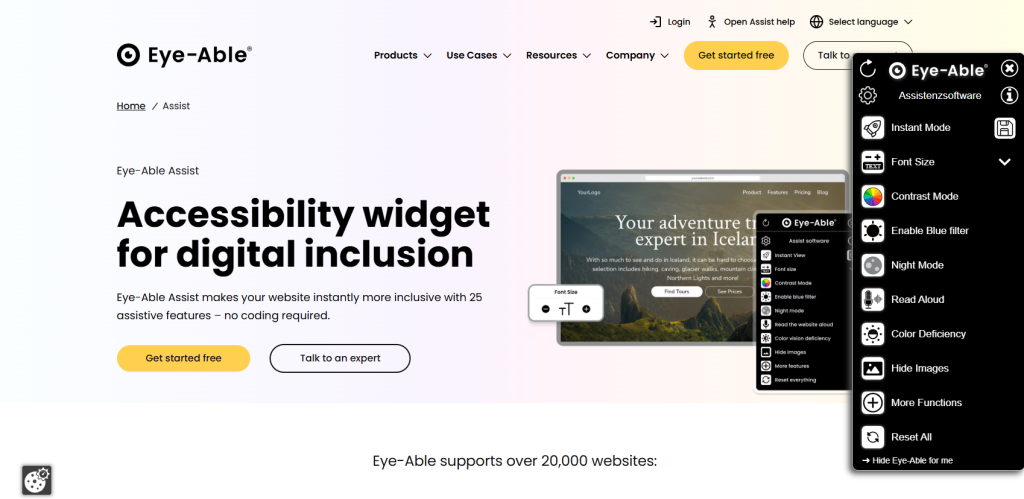
Eye-Able Assist focuses on personal reading customization, letting visitors adjust how text looks to suit their needs. Features include reading rulers, text spacing, and colour overlays built to ease strain for users with dyslexia or similar needs.
This makes it a strong fit for content-heavy sites like news pages, blogs, or schools. The interface is clean and stays out of the way of your site design. Still, its focus is narrower than full toolbars, so sites wanting wider options, like navigation or language support, should treat it as an add-on, not a full toolkit.
Pros
- Strong reading tools
- Good for text-heavy sites
- Clean, simple design
Cons
- Narrow focus
- Fewer options overall
#10 – AccessiYes
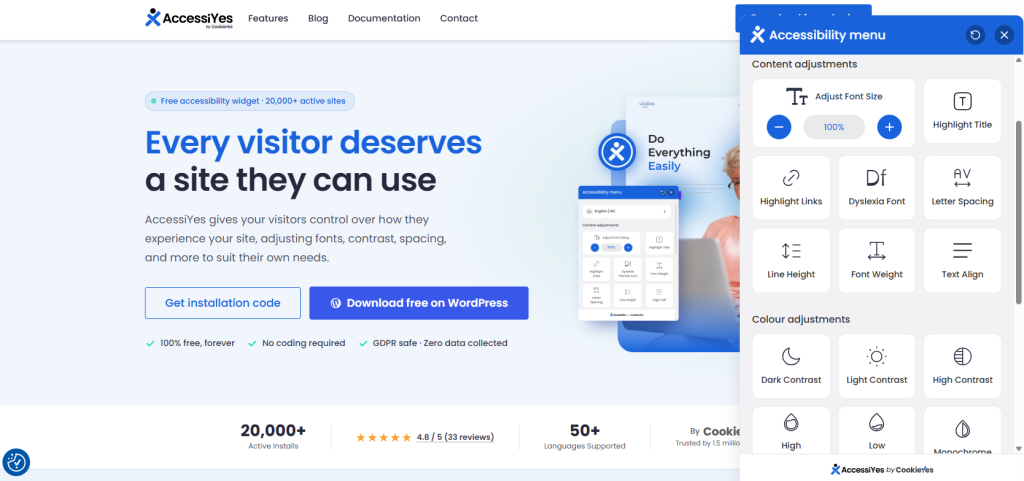
AccessiYes is a free widget built by the team behind CookieYes, aimed at site owners who want a no-cost way to add customization options. Visitors get controls for font size, dyslexia-friendly fonts, letter spacing, contrast modes, and a magnified cursor, alongside preset profiles that bundle common combinations into a single click.
It also includes a page reader and a language switcher covering more than 50 languages, which is a strong range for a free tool. Installation takes just a few minutes, and there is no premium tier gating features behind a paywall. It suits smaller sites and WordPress owners well, though larger organisations with more complex needs may still want a deeper toolkit.
Pros
- Completely free, no paywall
- Wide feature range for a free tool
- Quick, no-code setup
Cons
- Best suited to smaller sites
- Fewer enterprise-level customization options
Final verdict on the best web accessibility plugins
The right plugin depends on your site’s size, budget, and audience needs. Smaller sites may find light options like WideAccess or WP Accessibility enough for now. But for firms serving a wide range of visitors, a fuller toolbar like Recite Me or Userway with proven usability, translation, and reading support offers a stronger experience for everyone.
Whichever plugin you pick, remember these tools improve inclusion. But they work best alongside good design practice, not as a stand-in for it.
Best website accessibility plugins FAQs
Looking for a quick recap? Here are answers to some of the most frequently asked questions on this topic:
No, widgets improve usability and support your accessibility efforts. But they don’t guarantee compliance with ADA, WCAG, or EAA standards on their own.
Some are, like WP Accessibility and AccessiYes. Others, such as Recite Me and AccessiBe, offer paid plans with deeper feature sets for larger sites.
No, most plugins install with a single line of code or a WordPress plugin download, and typically take just a few minutes to set up.
Well-built widgets load quickly and shouldn’t noticeably affect site speed. But you can check load-time impact before choosing, especially on image-heavy or high-traffic pages.
Overlays apply automated visual fixes across a site. Toolbars, like Recite Me’s, give visitors direct control over reading, translation, and display settings.
It’s not recommended. Running multiple plugins can cause conflicts or duplicate features, so it’s best to choose one that covers your needs.